VR for Unity 3rd Person
Transform your Unity Character Controller to 3rd person VR.
VR for Unity 3rd Person#
Unity Version 6 is required for all versions of this asset. Consequently, you'll need to install a compatible versions of other assets that you wish to use.
We've thoroughly tested all the features of our VR implementation. While some configuration of Inputs and Actions will be necessary, we're confident it will perform exactly as intended.
We have provided specific examples for the main components, along with preset configurations for popular character models, and we'll be offering comprehensive video tutorials to guide you through using VR with the relevant genres.
Installation#
Virtual Reality offers the most immersive platform for digital games, providing accelerated learning in these environments. While developing a game for VR can be challenging, OpenWorlds VR for Unity makes it accessible for everyone to create within this immersive platform.
This asset leverages Unity's OpenXR Framework, ensuring compatibility with any VR headset that supports OpenXR.
To get started, use Unity's Package Manager to download OpenWorlds VR for Unity 3rd Person, or alternatively, you can integrate it into an existing Unity project using Unity 6.
Quick Start Guide#
After installing OpenWorlds VR for 3rd Person, navigate to Plugins/OpenWorlds/Example Scenes and load the OpenWorldsVR example scene. Once you've tethered your VR headset to your PC, click play, put the headset on, and follow the prompts within the scene.
The hand controllers have been pre-configured for this example, but you can easily customize the settings in the Inspector panel for the OpenWorldsVR Manager.
Click on each of the sections to see the configuration options, but for now, lets play with the pre-configured options.
We've also provided a series of example buttons linked to each of the hand control buttons and triggers. You can modify these to suit your needs, or create your own for your specific game.
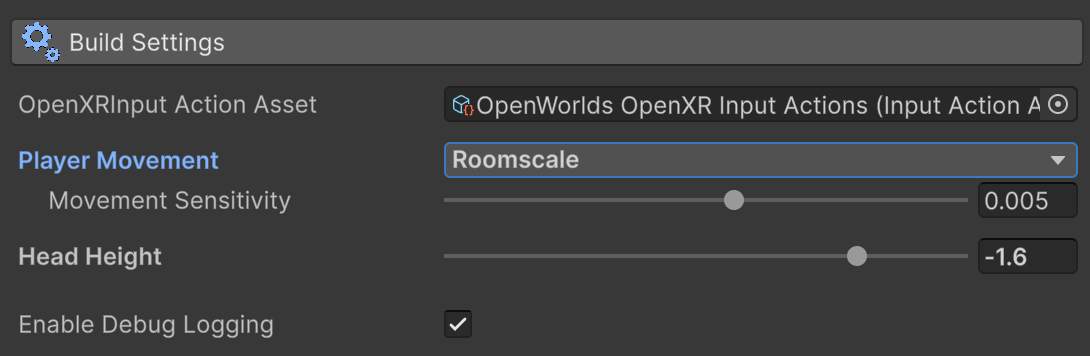
You can select RoomScale or Stationary Movement under Build Settings/Player Movement. RoomScale will disable thumbstick movement but still allow for teleportation while enabling you to move around the room by actual walking, giving you six degrees of freedom (6DOF). However, at this point in time we have disabled the Rotation (available only using thumbstick) as this induces excess motion sickness.
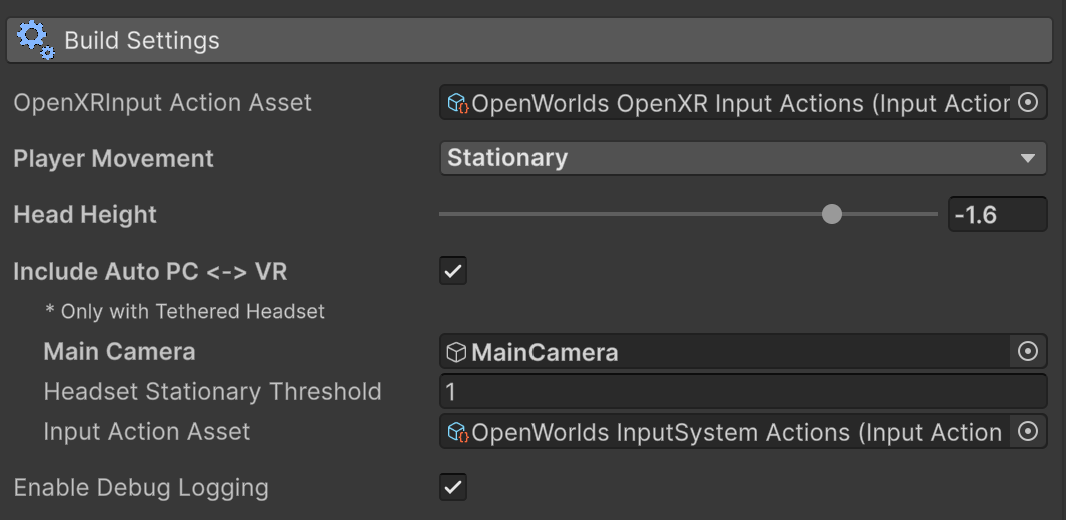
In the Build Settings section, you can enable the Auto PC to VR option. This feature allows you to seamlessly switch between playing on the PC with a keyboard and using your VR headset. Simply put on your headset at any time to dive into VR, or remove it and place it on your desk or stand. After a brief stationary threshold (2 seconds in this example), you can continue the game with the keyboard. This flexibility opens up numerous interesting options and environments for your gameplay.
Player & Camera Settings#
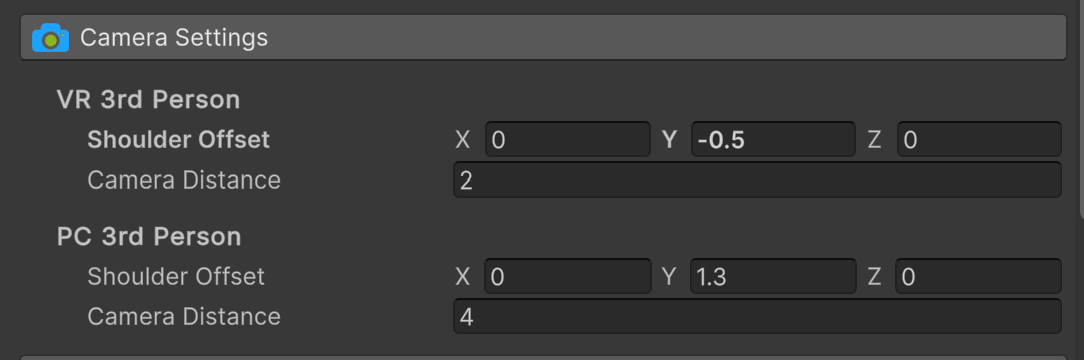
The camera settings vary based on the Player View. Shoulder offset and Distance from the player, both of which can be changed in-game.
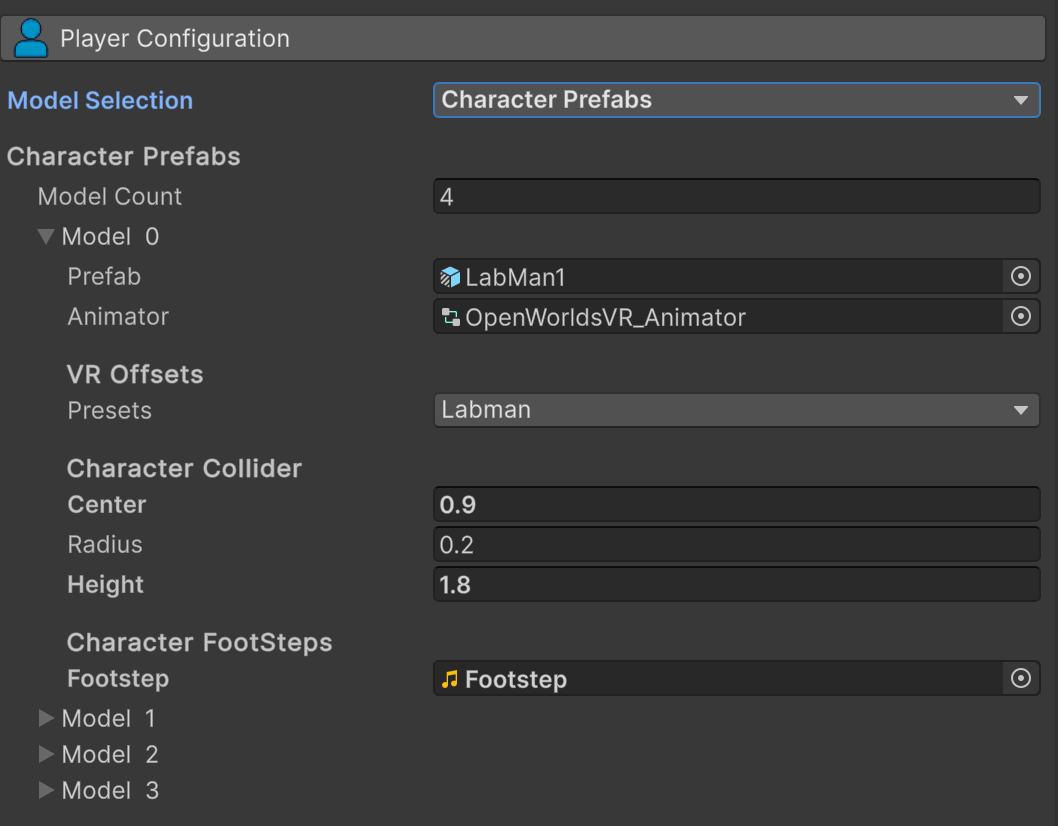
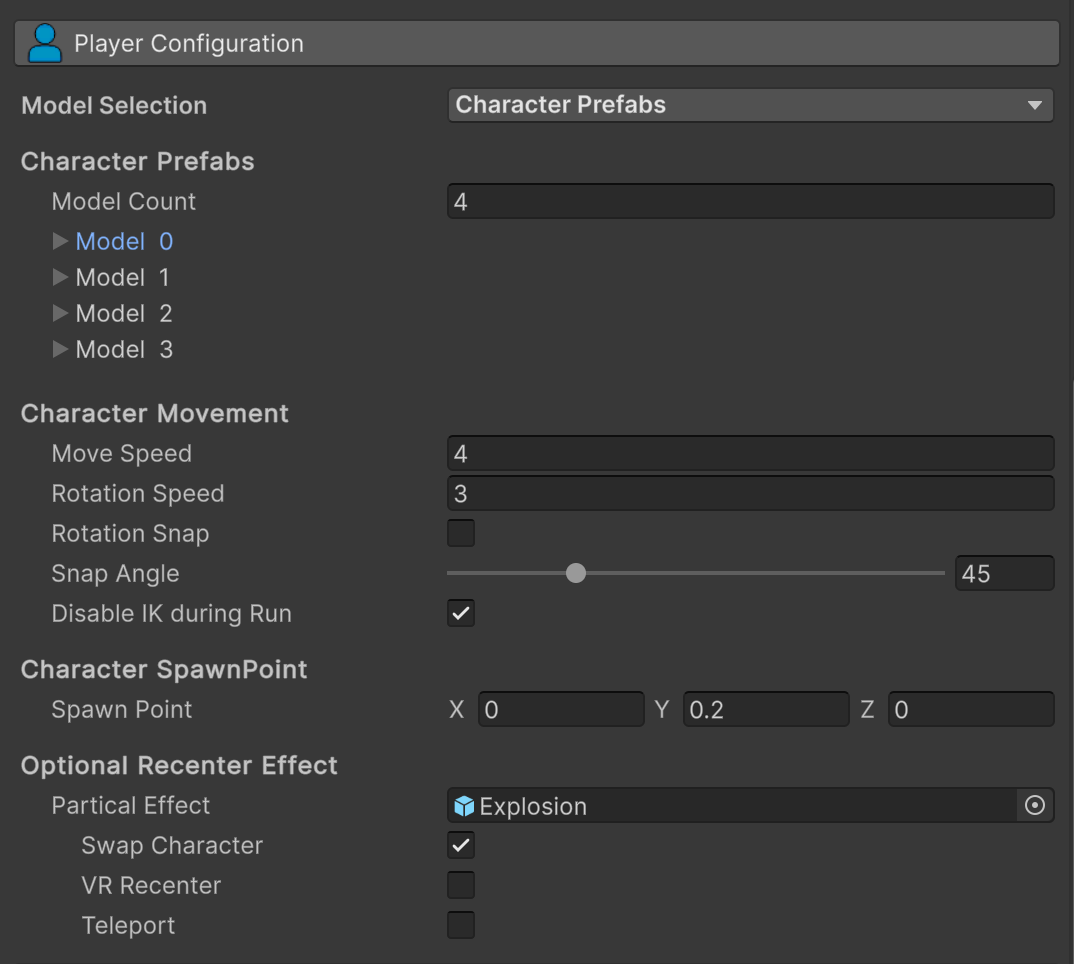
The package includes the character selection asset which has been configured to fit seamlessly, but it is optional. You can add as many character models as you need, and the mechanics of the character selections screens are the same as the CS for 3rd person.
This package also includes presets for character position and rotation settings for each of the most common character model orientations. However, you can also set your own using the custom option.
The crucial parameters are the Hand and Head Rotations. The Hand offset is essential to align the Character Hands with the VR Controllers. You may need to experiment with these settings, but we have provided VR Offsets in the code for popular characters like Mixamo, Synty and RPM characters. These are as follows:
| Character Preset | Head Rotation | LeftHand Rotation | RightHand Rotation |
|---|---|---|---|
| LabMan | 0f, 0f, 0f | -90f, 90f, 90f | -90f, -180f, 0f |
| Mecamin | 0f, -90f, -90f | 90f, 90f, 0f | -90f, 0f, 90f |
| Unity 3rd | 0f, 0f, 0f | -90f, 90f, 90f | 0f, 90f, 90f |
| Unity 3rd Alt | 0f, 0f, 0f | 180f, 90f, 90f | 0f, 90f, 90f |
| Synty 1 | 0f, 0f, 0f | -90f, 0f, 90f | 90f, 0f, 90f |
| Synty 2 | 0f, 90f, -90f | 90f, 90f, 0f | 90f, 0f, 90f |
| Mixamo | 0f, 0f, 0f | 0f, 90f, 90f | 0f, -90f, -90f |
| Ready Player Me | 0f, 0f, 0f | 0f, 90f, 90f | 0f, -90f, -90f |
| Custom | 0f, 0f, 0f | 0f, 0f, 0f | 0f, 0f, 0f |
You will need to add settings for the collider and you can add footsteps sounds if you want.
Other settings in this section apply to all character models. Settings like move speed, rotation speed, spawn point etc, apply to all models, but they can be changed using a trigger and script.
Hand Controllers#
Setting up the hand controllers and integrating them with Triggers and Actions is where this asset truly shines. Most VR hand controllers boast 12 input controls, with 6 on each hand. With the OpenWorldsVR Manager, you can effortlessly assign functions to each control using the convenient dropdown options in the Inspector window, and as a bonus, you can have up to 10 modes for optional Action bindings that can be changed during game play.
We've designed it to ensure you don't accidentally duplicate inputs. However, if you need to change an input, you might need to set the existing one to 'None' first. This feature allows for smooth customization and prevents conflicts.
Let's start with the Navigation Input.
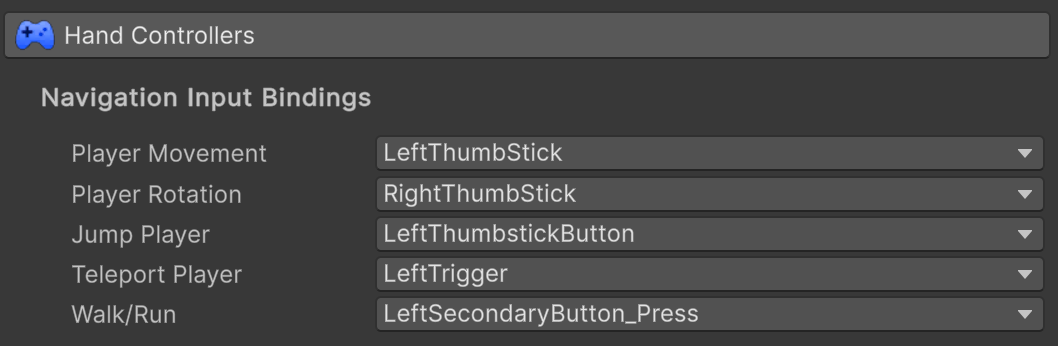
Each of the above can be set to a control or left blank. The Movement and Rotation can only be set to a Thumbstick (Vector 2) or can be left blank, and the Movement setting is not used for RoomScale (which is where you walk to make the player walk). You can also enable and disable each of these during game play with an input script.
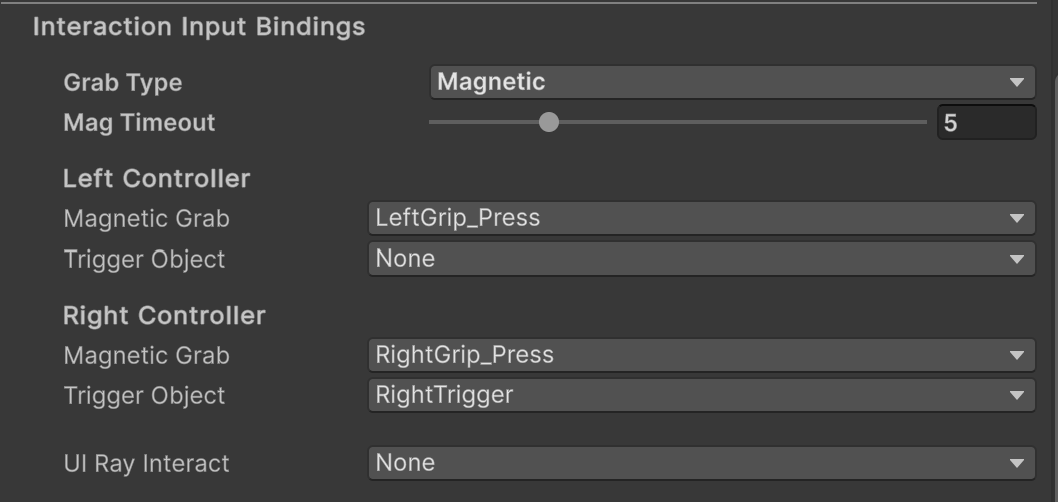
The interaction settings allow for Magnetic or Direct Grab, and only the Magnetic Grab has a timeout for the Ray. Again, these can be set or left blank. The UI Ray is needed to interact with in game UI.
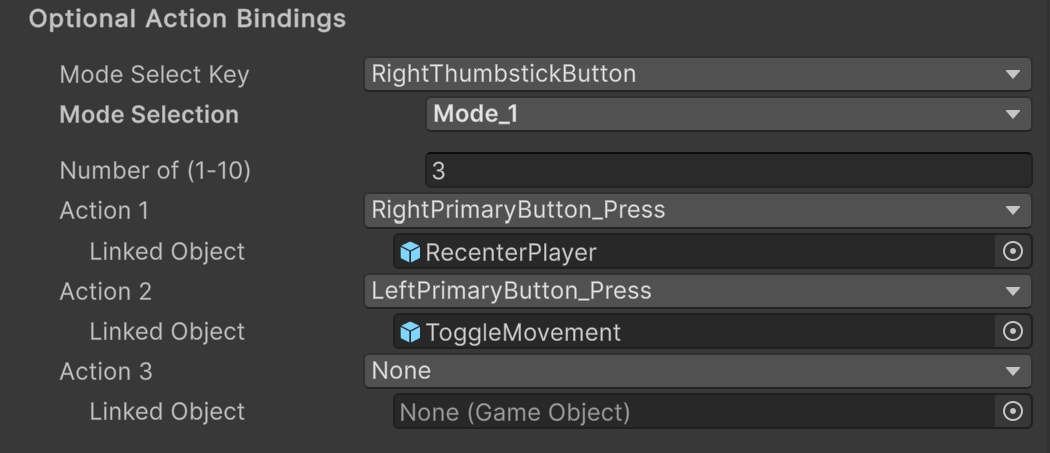
The Optional Bindings provide for three modes with up to 10 Actions per Mode. This allows for an additional 30 controls and modes can be changed during game play.
User Interface#
This asset package includes both Character Selection UI plus in game Player HUD, both are optional.
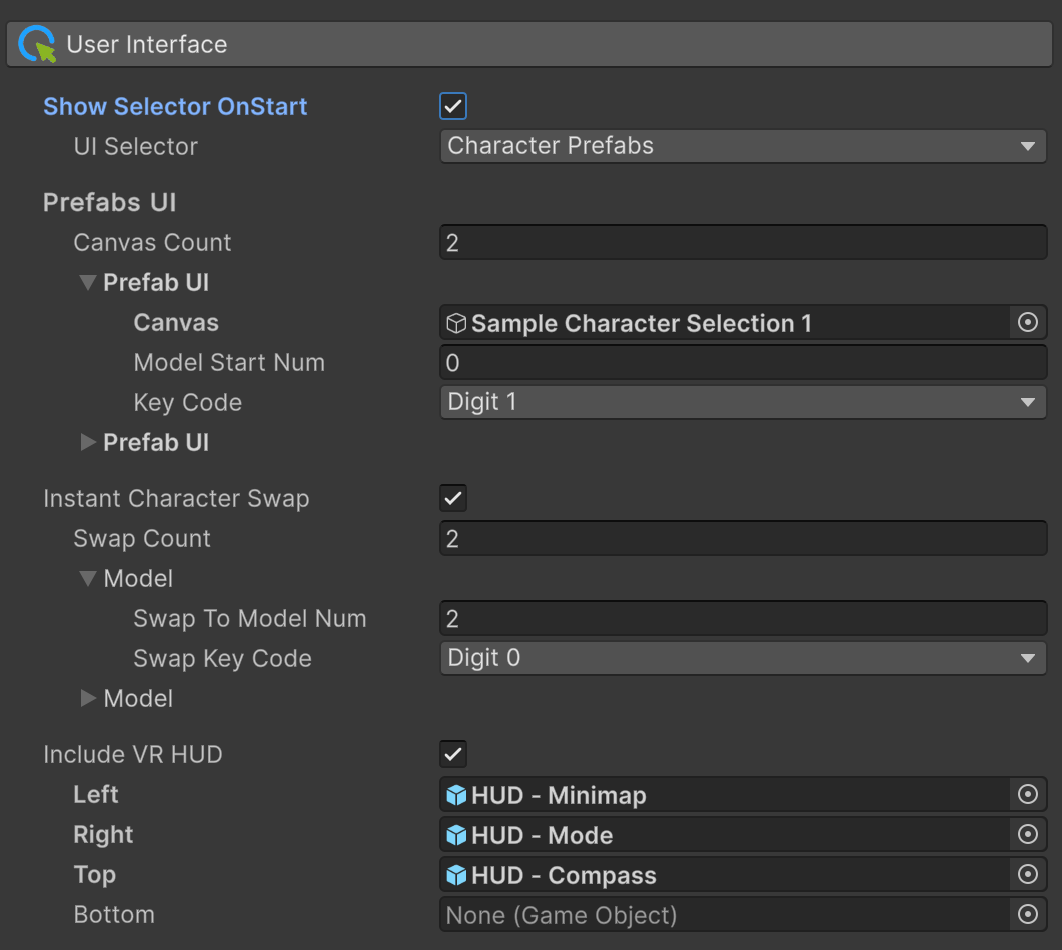
Most of this section is self explanatory. You can choose to display the character selector on start or if not, the first model will be selected. You can build your own selection screens and the population of the characters will be consecutive starting with the Model Start Number. The Key Code is only used when playing on a Linked Computer.
The Instant Swap character is used for triggers or can also be invoked with the keyboard with a linked computer.
The HUD is also optional and we have provided a sample Minimap and Compass. These can be freely used or as examples to build your own.
Input Scripts#
Input Scripts allow you to create any Actions you wish or control the included features within this asset. We have provided 36 pre-configured scripts as example prefabs. You can view these in the example scene.
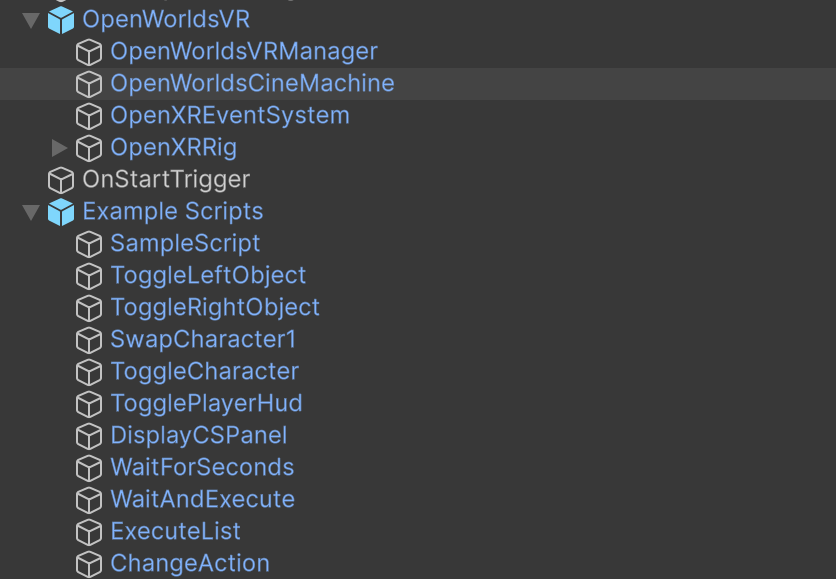
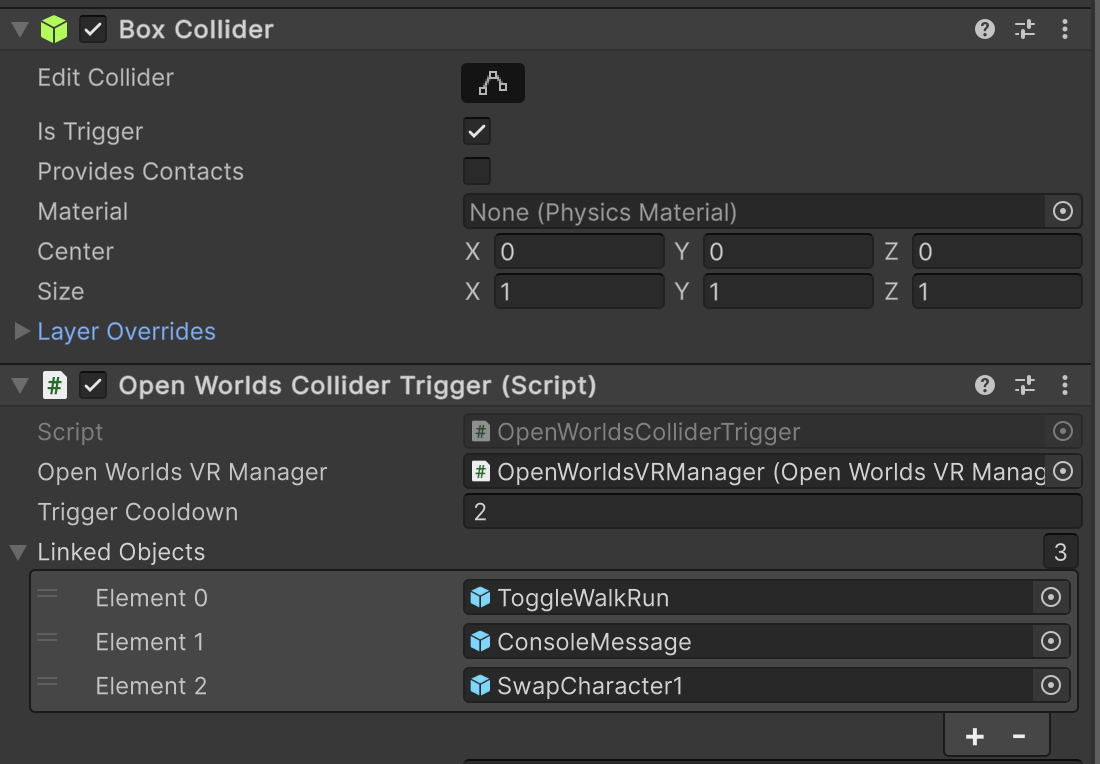
The example prefab scripts have been named appropriately so they are easy to understand. Each of them can be dragged into as a Linked Object in the Optional Bindings section or they can be added to a Trigger Collider using the included OpenWorlds Script. Check out the Example Scene to see how this works.
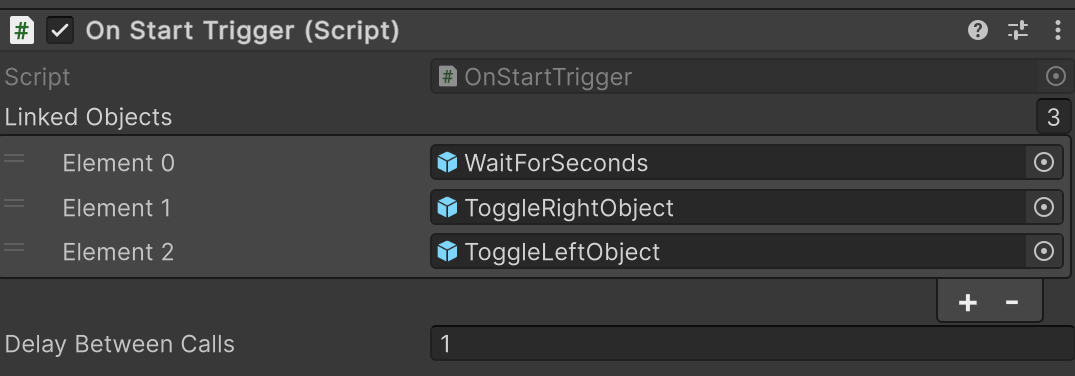
We have also included an On Start Trigger where you can also add OpenWorlds Input Scripts. You can experiment with the Delay parameter, you need to be aware of delays within Unity etc, for example, instantiating a character needs to complete before you access it.
The most powerful script is the ExecuteList script where you can stack other input scripts for sequential execution.
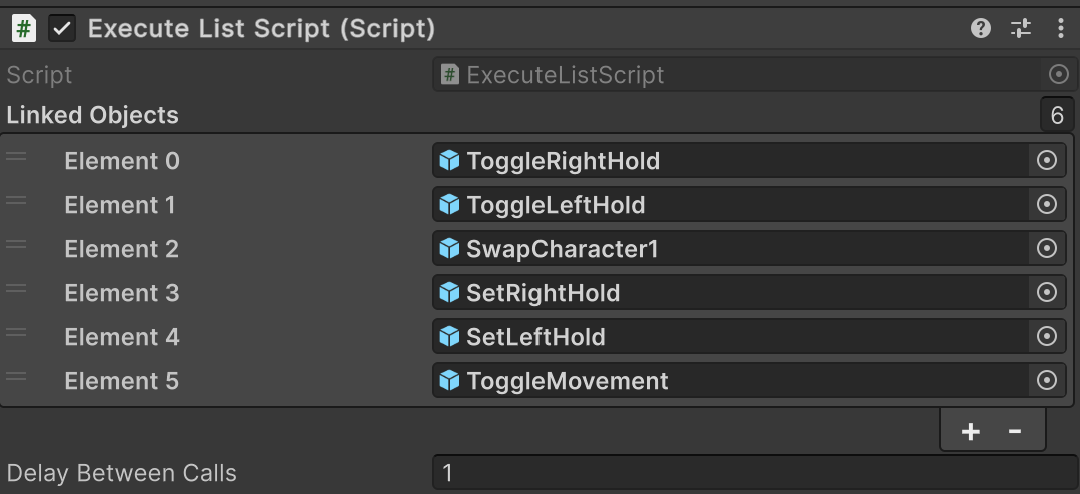
Check out the Example Script to see how to code your own Inputs, and watch the OpenWorlds Tutorial on building Input Scripts.
Adding VR to Existing Game#
After exploring our extensive example scene, you have two options to move forward. Firstly, you can create a new project, add Unity's OpenXR, and then integrate OpenWorlds VR to build from scratch. Alternatively, you can enhance your existing project—whether it's in progress or completed—by adding VR as another player option.
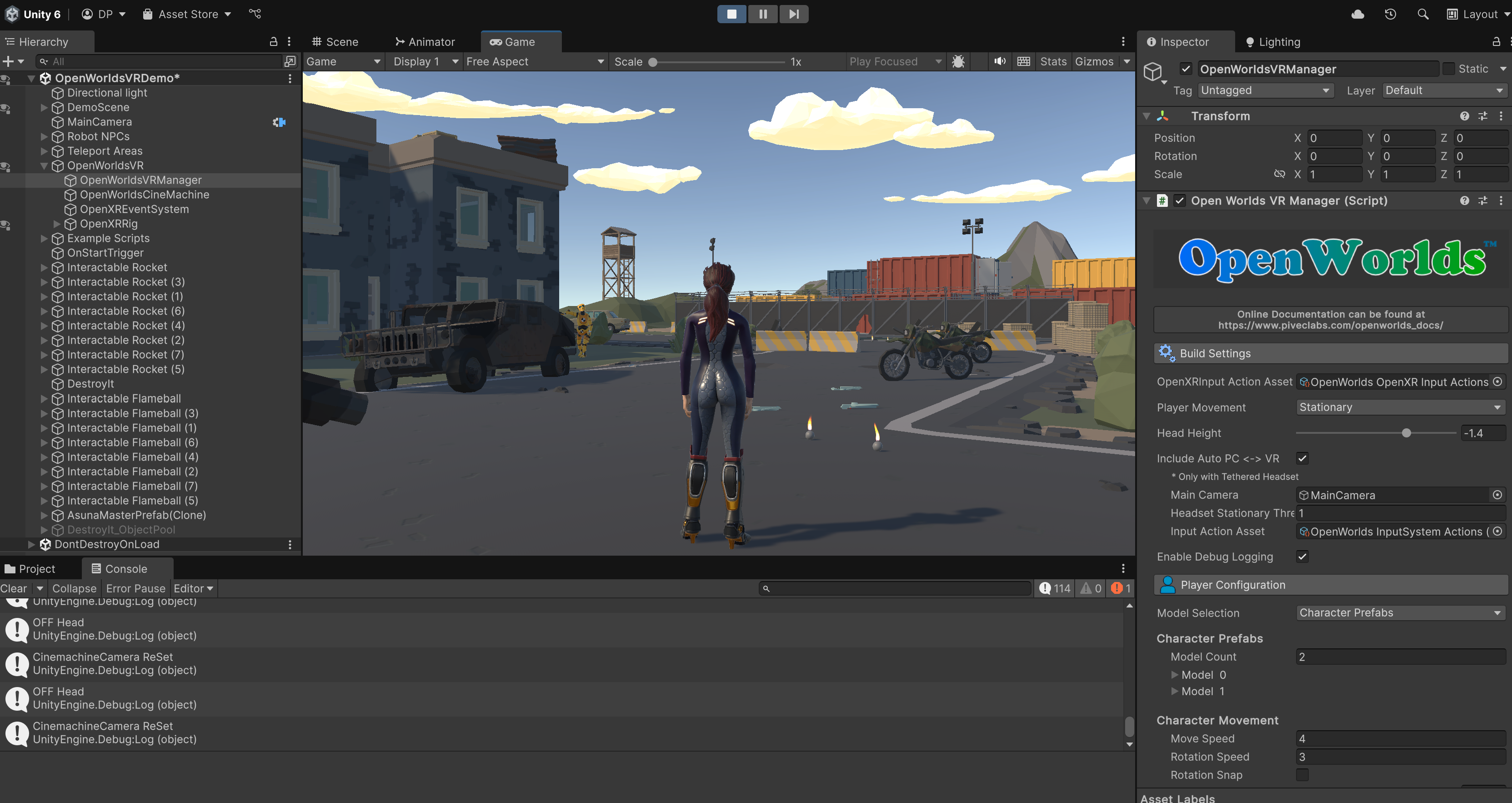
The screenshot above demonstrates how we've seamlessly integrated VR into Third Person Shooter scene. Ready to jump into action? Just add each of the two prefabs, and you'll be up and running in no time!
- OpenWorldsVR - Required
- Example Scripts - Configurable/Optional
After completing these steps, make sure to add the scene's Main Camera to the Build Settings if you plan to use the PC to VR feature. Additionally, you will need to add your Player model to the OpenWorlds Manager and select the appropriate presets for positions and rotations.
If you're a seasoned Unity user, you'll find this straightforward. If not, don't worry! Simply watch our detailed video walkthrough tutorial to guide you through the process.
Recentering the Player#
At the time of writing this asset, Unity has not included a process of recentering the Headset view using code. Therefore the player must do this manually using the Oculus Button.
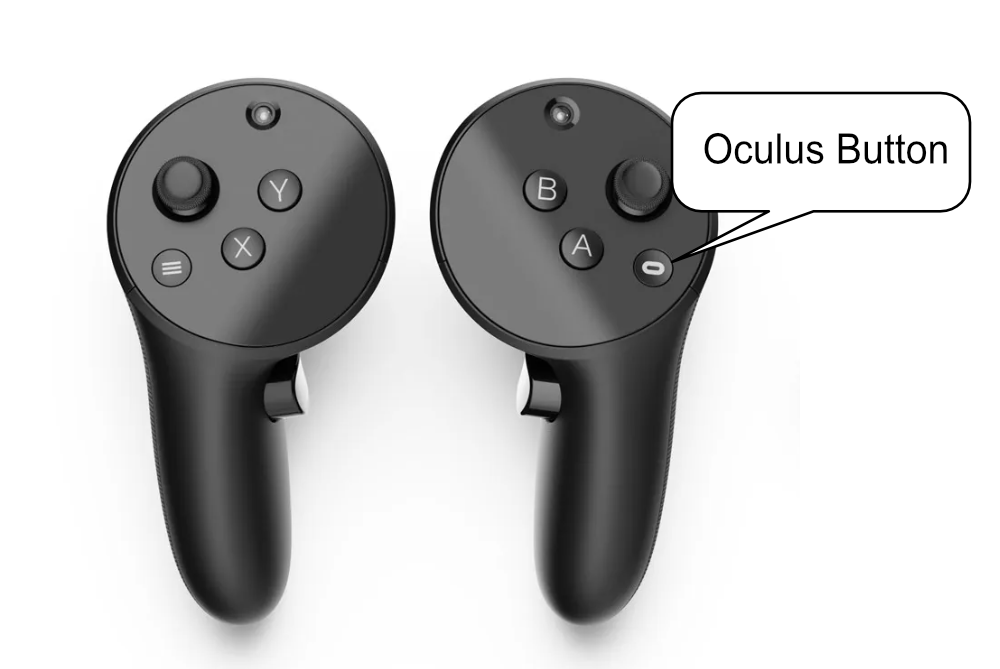
Ideally, this should be done before starting the game by simply pressing the Oculus Button. However, it can also be done during game play (sadly this interrupts play so players should be encouraged to do it early), and this should be followed by an OpenWorlds Recenter Player command.
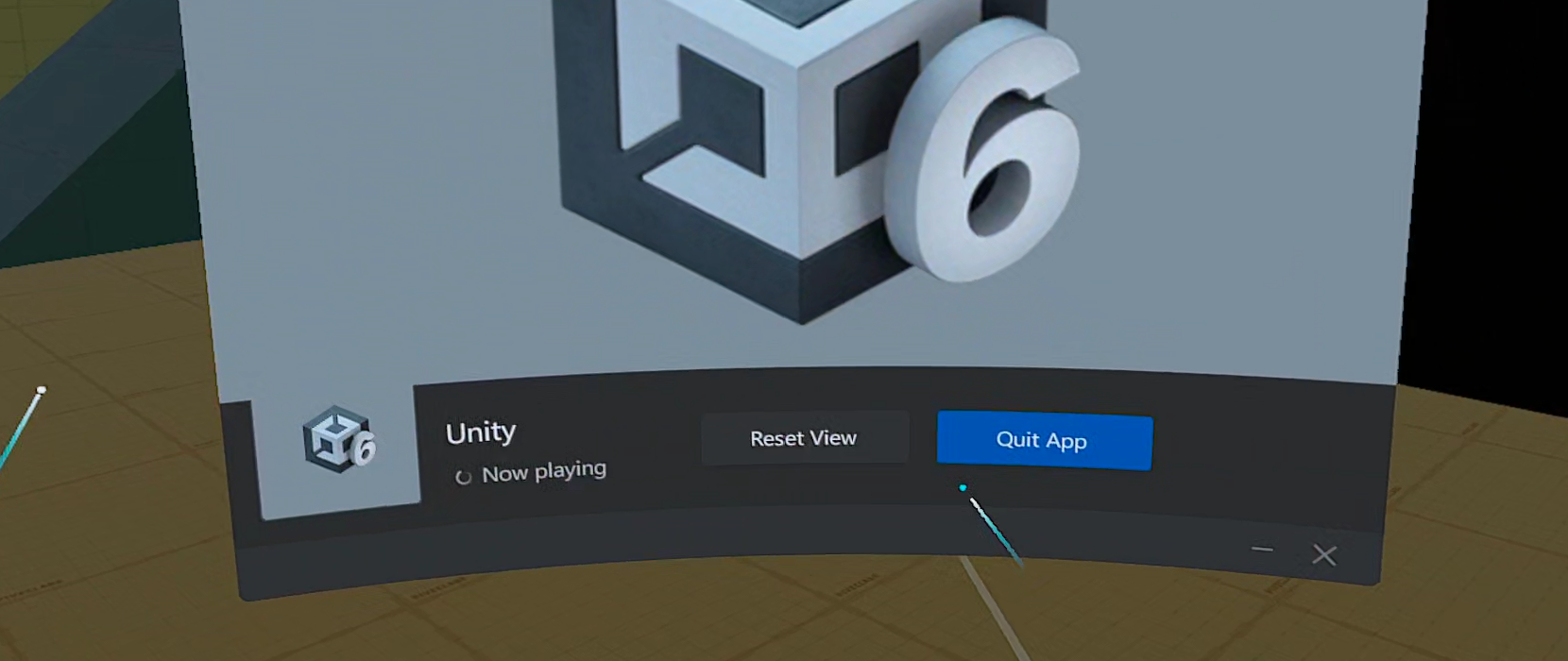
If the Player appears offset (only happens in Stationary mode), a recentering is necessary.
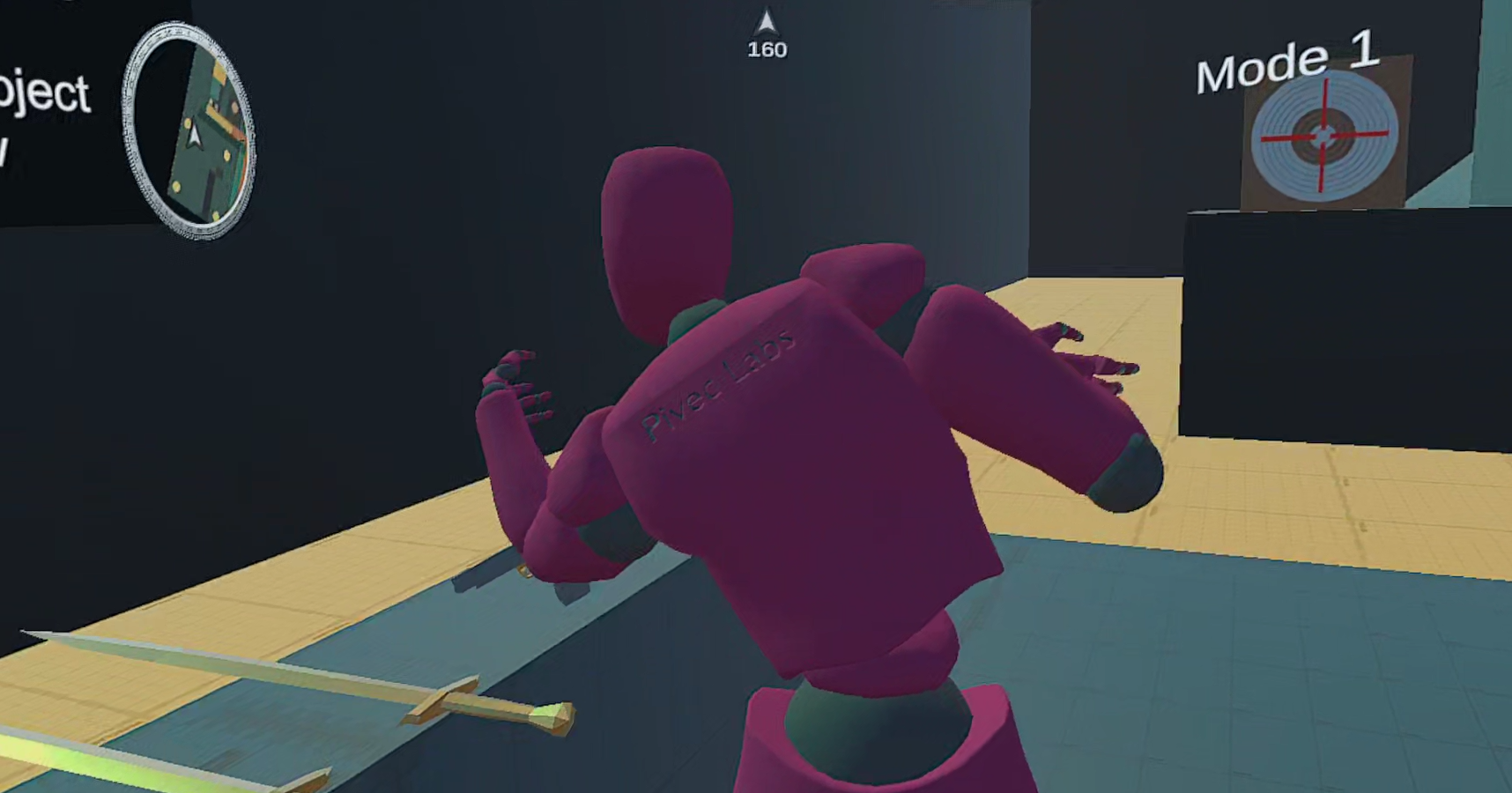
This also means that you should include the script to complete an OpenWorlds Recenter somewhere in your game, either on a button or a trigger. When Unity offers a way to do this programmatically, it will be included in this asset.
Video Tutorials#
Coming soon
Video tutorials coming soon.